Pages

December 31, 2015

Linux Usage for 2015

Calendar year 2015 is coming to an end, and I know I haven't been posting much here lately. But here's my Linux usage for 2015.

Desktop Computer

For year 2015, I noticed that I've used Red Hat family distributions starting Feb 2015.

Distribution Used from Used until
CentOS 7 (Gnome) 2015-06-15 2015-12-31
Fedora 22 Workstation (Gnome) 2015-06-04 2015-06-14
Fedora 22 Workstation (KDE) 2015-05-30 2015-06-04
Fedora 21 Workstation (Gnome) 2015-02-06 2015-05-30
Antergos (Gnome) 2014-08-23 2015-02-05

Laptop Computer

My laptop, an aging IBM ThinkPad T60, is what I normally use to try different distributions. So there is a lot of variations in usage in this computer.

Distribution Used from Used until
Q4OS 1.2 Orion 2015-08-08 2015-12-31
Manjaro i3 0.8.13.1 2015-08-06 2015-08-07
Debian 8.1 2015-08-03 2015-08-06
Peppermint 6 2015-07-10 2015-08-02
Bodhi Linux 3.0 2015-07-06 2015-07-09
CentOS 7 2015-05-14 2015-07-05
elementary OS 0.3 Freya 2015-05-10 2015-05-13
CentOS 7 2015-03-22 2015-05-10
Fedora 21 Workstation 2015-02-02 2015-03-22
Ubuntu MATE 14.04.1 2015-01-29 2015-02-02
PC-BSD 10.1 2015-01-28 2015-01-29
Ubuntu MATE 14.04 2014-11-11 2015-01-28

For year 2016, I'm planning to try out Linux distributions that make it easy for me to (1) install proprietary video drivers and (2) the Steam client because I've decided I want to try and play some video games again.

My current pick as of this posting is the Linux Mint 17.3 Rosa MATE edition. As a matter of fact, it's currently an ongoing installation to my desktop PC right now.

Here's to the new year for computing, especially Linux. Happy Linuxing!

December 24, 2014

Happy Holidays

I haven't updated this blog in a while mainly because my wife has recently given birth to our son. Also because I haven't been trying out new Linux distributions in a while. My desktop computer has been running on Antergos Cinnamon for quite some time now and my laptop is on Ubuntu MATE 14.04.1 LTS.

I've got my hands full with the baby at the moment but I am playing around with Docker containerization shit so I will probably post some stuff about that in the future. Most likely early 2015. There are other plans I am finalizing on so...

                 __________________________________
                < Merry Christmas, Happy New Year! >
                 ----------------------------------
                   \
                    \
                        .--.
                       |o_o |
                       |:_/ |
                      //   \ \
                     (|     | )
                    /'\_   _/`\
                    \___)=(___/

Anyway, have a Merry Christmas and a Prosperous New Year. See you next year! And as always, happy Linuxing.

September 6, 2014

Exploring FreeBSD

freebsd_ascii_logo

For the past few days, I’ve been running FreeBSD on VirtualBox to try and see if it can be a viable replacement for a desktop OS. So far, it’s been mostly smooth with a few bumps here and there.

Installation

I used FreeBSD-10.0-RELEASE-i386-dvd1.iso which can be downloaded from here. The installer was pretty straightforward except when I got to the last part, I kept getting an Abort error.

freebsd_abort

It turns out that in the Errata section, the first bullet point states:

FreeBSD/i386 10.0-RELEASE running as a guest operating system on VirtualBox can have a problem with disk I/O access.

I needed to follow the instructions provided to get FreeBSD installed.

To disable it, choose Escape to loader prompt in the boot menu and enter the following lines from loader(8) prompt, after an OK:

set vfs.unmapped_buf_allowed=0
boot

Note that the following line has to be added to /boot/loader.conf after a boot. It disables unmapped I/O at every boot:

vfs.unmapped_buf_allowed=0

For more info, check this question I posted on StackExchange.

After installation, I boot into a command line environment where I am able to log-in to FreeBSD.

Software Management

As a long time Linux user, I am used to package management. I am happy to find out that FreeBSD comes with not just one way to manage your software, but 2: via binary packages and via Ports.

Binary packages can be installed using the command line with the pkg command. I’m sure most Linux users will feel at home with installing binary packages. The Ports Collection consists of software that need to be compiled from source and then installed. But FreeBSD really makes it easy to do so; just go to the directory of the Port you want to install and type the command make install clean.

More info about installing applications can be found here.

Setting up the GUI

Since the base installation of FreeBSD doesn’t come with a graphical user interface (environment), I had to install one. It all starts with the installation of the display server Xorg or X11.

For the desktop GUI I decided to go with Gnome2, the very first desktop environment I used when I gave Ubuntu a go way back in 2006.

freebsd_gnome2

There’s also KDE and XFCE so choose which tickles your fancy. There are a whole lot more in the Ports Collection but I didn’t want to compile a desktop environment because I wanted to get up and running as quickly as possible with FreeBSD.

The FreeBSD Handbook has a great writeup for getting the X Window System set up.

VirtualBox Guest Additions

I don’t know if the VirtualBox Guest Additions ISO comes with a way to install the guest drivers for FreeBSD. I found this wiki entry for installing Guest Additions for FreeBSD guests which I followed (and it worked). I suggest you do the same if you have FreeBSD as a guest in VirtualBox.

Note that I needed to change the /etc/X11/xorg.conf manually for the vboxvideo_drv and vboxmouse_drv sections to get a decent resolution and have mouse integration on.

Conclusion

That’s how far I’ve come for now. I plan to spend more time using FreeBSD. So far I like what I’m experiencing. If you’ve installed and used vanilla Arch Linux before then the feeling is somewhat similar with installing and using FreeBSD. You take control on how to shape your system.

The pkg command in FreeBSD is similar to that of pacman for Arch; the Ports Collection in FreeBSD is similar to that of AUR for Arch. The FreeBSD Handbook has served me well so far, just like Arch’s Wiki has. Really, if you’re using Arch Linux, then FreeBSD will be comfortable for you.

Of course, there are some things I still haven’t wrapped my head around, most specifically the naming of devices.

The experience is mostly positive for now and I’m happy that I got FreeBSD working as I expect it to. But the thing is, this is running in a virtual environment and I don’t know if it will also work when installed on real hardware most especially the networking side of things. I’m still waiting for my old laptop to be back from repairs so till then, I will be testing in VirtualBox.

UPDATE (2014-09-28):

I couldn't get FreeBSD up and running with X11 on my repaired ThinkPad T60. So I guess it will stay in VirtualBox on my desktop PC until I find a machine to run it on.

END UPDATE

Thanks for reading and happy Unixing.

July 6, 2014

Ubuntu 14.04 LTS Trusty Tahr experience

Guest starring OS X 10.9.3 Mavericks

I’ve finally spent some time with the latest Ubuntu release, 14.04 LTS codenamed Trusty Tahr, and this here is a transcript of my experience with it. As mentioned before this paragraph, I have decided to guest star OS X 10.9.3 Mavericks because I’ve been using it for the past couple of months and I felt it would be interesting to compare and contrast them.

If you are looking forward to some OS X bashing, then I’m sorry to disappoint you because I don’t subscribe to that kind of shit. As an avid follower of technological tools, I feel it is really moronic to bash on a platform. Use what you feel is best for you, then move on. But I digress…

Let’s begin!

June 7, 2014

Playing streaming Flash videos without Adobe Flash on Linux

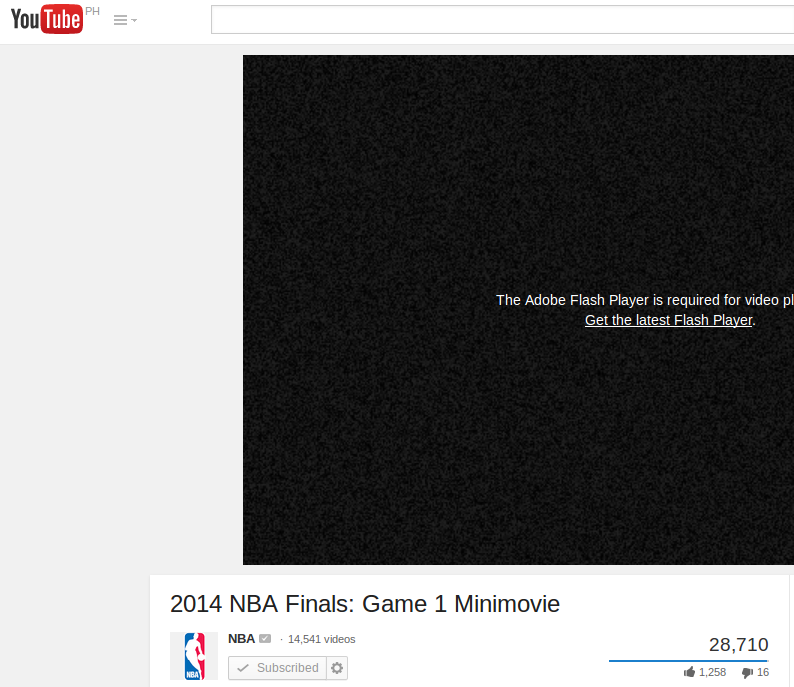
Adobe Flash is still the norm for watching streaming videos on the Internet. There has been a great adoption of HTML5-based videos on YouTube; around 90% of the channels I subscribe to play just fine on my Ubuntu 14.04 LTS, Mozilla Firefox (without Flash plug-in) setup. But still, there are those 10% that don't (the includes you, NBA channel!).

The plug-in is installable via the flashplugin-installer package in Ubuntu 14.04 LTS. But since Adobe abandoned Linux some time ago, then I decided to shun Adobe from my Linux set-ups. In this post, I show how I watch YouTube videos on my Linux box.

June 1, 2014

Python development environment setup in Ubuntu 14.04 LTS

After 100 days of using the Antergos Gnome 3 distribution as my main OS, I've decided to distro-hop again and try out the new Ubuntu 14.04 LTS (which I just recently installed).

A little bit over a month ago, I landed a job as a (probationary) web developer at a local web development shop. My tasks there consists mostly of Python/Django development. And so I can now say that I am professionally doing Python/Django development (yey!). I learned from my mentors at work on how to manage my development environment efficiently. I did know about virtualenv prior to landing that job, but I learned about virtualenvwrapper and how it augments usage of Python virtual environments on the job.

This post are just my notes on how I setup virtualenvwrapper on my Ubuntu 14.04 LTS box.

May 24, 2014

Thoughts on OS X

I've recently just started on a new job as a web developer doing Python/Django type of stuff. I'm very new to this web development industry, as I previously worked with SAP ABAP, so it is rather exciting. The companies I've worked for doing ABAP work all used Microsoft Windows; and that's not surprising because Windows is ubiquitous in enterprise work environments. Personally, I use Linux, primarily because I can't afford a legit copy of Windows nor can I afford the high premium of Apple computers. But my current employer has given me the opportunity to work with an Apple Mac mini in the office. I've been using it for close to a month now and here are some of my thoughts about it.

May 17, 2014

Linux Distribution Usage History

A little over a year ago, I assembled my first desktop computer all by myself. I've been using computers for a very long time but it was only until that point in my life where I felt the inspiration to try and build one myself. After much reading and YouTube watching, especially the part about inserting the CPU into the motherboard, I bought all the parts and started assembling.


PC Build Components (May 8, 2013)

But this post isn't about that. When I successfully completed that build, I already decided to boot only Linux on the machine. And so I made a running file in Google Drive to log all the Linux distributions I've used since May 8, 2013. (I felt really stupid for not thinking of doing this earlier, when I started using Linux in 2008...but oh, well.)

May 1, 2014

Vagrant: "Development environments made easy."

I've been using VirtualBox as my go-to hypervisor provider. It's usually how I test out Linux ISOs I've downloaded to see if they run before I load said ISO into a USB device. Another thing I've recently used virtual machines for is to create a development server to, for example, host a LAMP stack, which I prefer not to install into my main OS. I do like to use the same tools when developing stuff across the board. This is where Vagrant shines! You basically create a Vagrant VM to get a LAMP server running but use the tools on your host OS (e.g. text editor, IDE, etc.) to edit the web pages that are served by the VM.

Vagrant is a great tool for spinning up VirtualBox VMs as fast as possible. You create a Vagrantfile, a file which holds the settings on how to setup a VM; things like which base box to base your VM off of, to the networking setup or to the shared folders the VM will have with the host machine. The Vagrantfile is written in Ruby code but it is very easy to grok and you don't need to learn the language to create one.

In this post, I gloss over my usage of Vagrant.

April 7, 2014

VIDEO: How to Install Linux Mint (Debian Edition)

So I've created a new video. This time showing how a typical installation of Linux Mint Debian Edition is done.

Note that these installation steps may be used with the vanilla Linux Mint editions, i.e. those based on Ubuntu.

April 1, 2014

VIDEO: Create Live Linux USB in Windows XP

As Windows XP is reaching End of Support, I show a way for Windows XP users on how to create a live Linux USB drive so that they can try Linux out and hopefully convert to using it as their primary operating system.

I've decided to create a video which I'm hoping will help a lot of people who want to convert from using Windows XP to Linux.

Apologies for the bad audio; my microphone isn't very good and English isn't my primary language (thus explaining the pauses in-between words).

March 20, 2014

Making Arch Linux Simple With Antergos

Antergos caught my attention because it claims to be the easiest and fastest way to get an Arch Linux machine up and running. So I gave it a try and right now, it's my main OS (because I did something stupid and my Fedora install b0rked...and just as I was beginning to like Fedora...). I don't consider this a review per se, but here's my experience with Antergos since I installed it last Feb 20, 2014.

February 23, 2014

A Basic CentOS LAMP Server Build in VirtualBox

I've been using Fedora for more than a month now and I wanted to create a virtual machine (VM) in VirtualBox which I can use for learning web development. I usually go for a Debian based VM but this time, since I'm on Fedora, then I decided to go with CentOS.

I have used CentOS before so I knew that it took a bit of effort to get it up and running. In this post, I put down my notes into how I built a CentOS VM for a basic LAMP server.

Creating the CentOS guest

The CentOS OS is easy enough to install. Just download the ISO image from their site; I chose to use the CentOS-6.5-x86_64-minimal.iso image. It's just a matter of using the downloaded image as the DVD media for the VM. Installation is straightforward and fast and finishes in under 30 minutes.

NOTE: In my setup, I have set 2 network interfaces -- one for Host-only adapter and another for NAT adapter. At this time of posting, I suggest to set Host-only as adapter 1 and NAT as adapter 2 because I've run into some issues with the network interfaces. Host-only interface is for accessing the VM from the host machine while the NAT interface takes care of the connection to the Internets.

Enable networking in the CentOS guest

Network interfaces are down by default in CentOS [1]. So there is a need to do some manual configuration. To show the interfaces, use command ip addr show. Since my setup has 2 network adapters set in VirtualBox, the result of that command shows eth0 and eth2, for the Host-only adapter and the NAT adapter, respectively. The configuration files for these are located in /etc/sysconfig/network-scripts/ifcfg-ethX where X is the interface number.

February 12, 2014

Virtual Environments for Python

I dabble with Python programming every now and then. Nothing serious, just casual n00bz stuff. Along the way, I stumbled across virtualenv. In a nutshell, it's a tool to create isolated Python environments. Python, like most programming languages, have 3rd-party modules (or libraries) that can be installed and used within your very own projects. Using pip makes it easy to do (granting pip is installed on your system).

Installing 3rd-party modules directly onto your bare-metal system may be fine for most cases, so you might be thinking why isolated Python environments? Well, if you're like me, I prefer to alter my base system as less as possible in terms of installed software. But from the top of my head, here are some reasons to consider using virtualenv.

  1. You don't have root privileges in your current system to issue a sudo pip install module command
  2. You work with a lot of Python projects that use different combinations of 3rd-party modules
  3. You are concerned that installing all 3rd-party modules may cause conflicts with each other
  4. You are OCD, like I am
  5. You like anything "virtual"...

The first 3 reasons could be valid...the last 2 can be ignored. Anyway, here's a use-case to illustrate my workflow.

February 5, 2014

A note on VirtualBox installation in Fedora

I use VirtualBox [1] a lot. It's actually one of the first few applications I install after doing a fresh install of a Linux distribution. As I am currently using Fedora, I noted that it's best to do it like so:

    $ sudo yum install VirtualBox kmod-VirtualBox

kmod-VirtualBox is the kernel module for VirtualBox. If for instance, when logged in using, say, for example kernel 3.12.8-300.fc20.x86_64 and doing sudo yum install VirtualBox, then the kmod-VirtualBox-3.12.8-300.fc20.x86_64... will be installed along as a dependency. Now this is fine, as long as you are using the 3.12.8-300.fc20.x86_64 kernel, the kernel module for VirtualBox is useable. But then a new kernel update comes along, say kernel 3.12.9-301.fc20.x86_64 and you log out, reboot the computer and choose this shiny new kernel. Then once logged in, you run (assuming you do things from a terminal emulator, like I do) VBoxManage startvm 'my-virtual-machine' --type headless and the STDOUT spews forth an error telling you that kernel modules haven't been installed for the current kernel (or something like that).

That's where the meta-package kmod-VirtualBox comes in. So when there's a kernel update in Fedora, the specific VirtualBox kernel module will automatically be installed for that kernel. Then you can happily continue using VirtualBox in Fedora.

---

[1] VirtualBox package I used are in the RPMFusion third-party repository which needs to be activated before it can be used.

January 18, 2014

Fedora 20 Heisenbug Experience

Updated Jan 21 2014

I haven’t touched Fedora for a long time. Perhaps the last version I cared to try out was Fedora 16. Using it again has showed me why it's been that long — adding 3rd party repos was a bit cumbersome for me, coming from mostly an Ubuntu and Debian background.

For the last quarter of 2013, I was hell bent on using only Debian and its derivatives (except Ubuntu and its derivatives) as my main OS. The last I had installed was a rolling release based on Debian Sid, Semplice 5.1. Unfortunately, I only used it for a day because my mind kept nagging me that if I were to "roll", Arch Linux is the way to do it.

I succumbed and installed Arch Linux. I was using it for close to 15 days, too, until I broke my system attempting to dual-boot with, wait for it, Fedora 20! I didn’t want to go through installing Arch from scratch again so I decided to go with Fedora 20. And here we are.

December 24, 2013

The end of my Debian madness?

Earlier this year, I had decided to go exclusively for Debian (or Debian-based, but not Ubuntu-based) distributions. But this happened:

After 2 days of installing (and re-installing), I finally settled. Hopefully this will stick for a long time.

Merry Christmas!

December 10, 2013

I messed up my EFI boot

I have Debian installed on /dev/sda4 and it’s using EFI. I installed Arch Linux to another partition, /dev/sda5 the other day and it created a new GRUB2 menu during boot. Unfortunately, I somehow messed up the installation and when I chose to boot Arch from GRUB2, I get an error:

error: no such device: d4103fa-d940-47ca-...
Loading Linux core repo kernel...
error: no such partition.
Loading initial ramdisk...
unaligned pointer 0x22
Aborted. Press any key to exit.

Once I pressed any key, the Debian GRUB2 menu was displayed (giving me the idea that 2 GRUB2 menus have been installed to the EFI boot partition) and I was able to boot into Debian.

Since Arch didn’t want to start, I reformatted /dev/sda5 to remove it and went to remove it from the EFI boot parition. I searched the web on how to do this and came across this post which basically says that GRUB2 isn’t needed to boot Linux in EFI; EFI stub can be used. Thinking it would work, I reformatted /dev/sda1, where my EFI boot partition is, and followed the instructions.

Reboot…computer is stuck with a black screen with a blinking cursor on the top-left corner. Not a good sign. Waited a full 5 minutes to see if it would boot up. Nothing. Rebooted 10 times more. Nothing.

I knew I messed up my EFI boot.

After doing a lot of reading, I felt that it would take too much time (4chan was waiting…LOLs) to get my boot loader back up without GRUB2. So I decided to reinstall GRUB2 via a chroot environment using Mint 16 live USB (booted in UEFI).

Inside Mint, opened a Terminal and

(mint)$ sudo mount /dev/sda4 /mnt
(mint)$ sudo mount /dev/sda1 /mnt/boot/efi
(mint)$ for i in /dev /dev/pts /proc /sys; do sudo mount $i /mnt$i; done
(mint)$ sudo chroot /mnt

(chroot)# apt-get --reinstall install grub-efi-amd64
(chroot)# exit

(mint)$ for i in /sys /proc /dev/pts /dev; do sudo umount /mnt$i; done
(mint)$ sudo umount /mnt/boot/efi
(mint)$ sudo umount /mnt
(mint)$ sudo reboot

After POST, the Debian’s GRUB2 menu showed and I’m once again able to boot into the computer.

December 7, 2013

Knoppix 7.2 Experience

In my search for a viable distro to use as my main OS that's either vanilla Debian or Debian-based (and not Ubuntu-based), I stumbled on Knoppix. I know that I've heard of this distro before but never really checked it out for reasons unknown. But this distro usually gets mentioned in online forums where the question is about PC troubleshooting. Most suggest the use of Knoppix for times when the main OS doesn't boot or is infested with viruses, etc.

I decided to give it a go. Besides, it's always useful to have a bootable Linux distro in case my main OS does decide to falter.

November 25, 2013

Debian: From CLI to GUI

Debian's latest stable release has been out since last May 2013 and I'm very eager to make it the main OS on my computer.

I have used Arch Linux in the past and I liked its K.I.S.S. approach where everything is built from the ground up. But since I decided to limit my Linux explorations to Debian-based distros for now, Arch will have to wait. That's where I got the idea to do a minimal install of Debian and build it up from there.